
How to Install and Set Up MetaMask (2026 Updated Guide)

 Prefer us on Google

MetaMask remains one of the most widely used self-custody wallets in crypto, with third-party estimates putting it above 30 million monthly active users in 2026. It has also expanded well beyond Ethereum, with official updates highlighting support across Bitcoin, Solana, and hundreds of blockchain networks. This guide focuses on the part beginners care about most: how to install MetaMask safely, create your first wallet, back up your recovery phrase correctly, and avoid the setup mistakes that cause many losses.
At a Glance
- Download MetaMask only from the official MetaMask website or its official App Store and Google Play listings.
- The basic setup flow is still: install, create wallet, set a password, back up your 12-word recovery phrase, and confirm it.
- Your recovery phrase is the real key to your wallet; if someone gets it, they control your funds.
- Most MetaMask-related losses in 2025–2026 came from phishing, fake recovery help, and scam interactions, not the wallet core being hacked.
Before You Start: What You'll Need
Before installing MetaMask, decide whether you want to use it on desktop, mobile, or both. On desktop, most people use the browser extension. On mobile, you install the app from the official app marketplace. If you plan to trade, use DeFi, or interact with a blockchain ecosystem across multiple devices, it often makes sense to set up one wallet carefully first and then import it onto your second device later.
You should also prepare a safe place to store your recovery phrase offline. MetaMask’s core setup process still revolves around a 12-word Secret Recovery Phrase. That part has stayed stable even as the product has grown into a broader finance platform with features like MetaMask Card, Money Account, tokenized assets via Ondo, and multichain support. If you are a beginner, treat the setup as a security task first and a trading tool second.
How to Download the Official MetaMask App or Extension
The safest starting point is the official MetaMask website, which routes users to the proper browser extension and mobile app pages. For 2026, that means using MetaMask’s official website for desktop installs and the official App Store or Google Play listings for mobile installs. Do not search randomly and install the first result you see. Fake wallet apps, cloned extensions, and phishing pages still target new users aggressively.
Official MetaMask security reporting in 2026 kept focusing on external threats such as signature phishing, supply chain attacks, fake recovery service scams, and malware rather than a direct compromise of the wallet’s core system. In February 2026, MetaMask’s security report flagged a 207% surge in signature phishing. That tells you something important: the biggest installation risk is usually downloading the wrong app or trusting the wrong site.
How to confirm you are using the official version
Check that the download path begins at the official MetaMask website and that the store page clearly matches MetaMask branding from Consensys. Be cautious with sponsored search results, lookalike domains, and apps with similar fox logos. On desktop, install the extension only through the official route. On mobile, avoid APK files, Telegram links, or direct downloads shared in chat groups.
As of 2026, MetaMask continues to offer its standard self-custody wallet setup flow. Based on the provided official and research materials, the confirmed beginner path is still the classic wallet creation process rather than a fully different social-login-first setup. Because MetaMask regularly updates its interface, button wording may shift slightly, but the core steps remain the same.
-- Price
Creating Your First Wallet Step by Step
Once MetaMask is installed, open the app or extension and choose the option to create a new wallet. You will be guided through the wallet creation flow. The exact screen design may look a little different on mobile versus browser, but the sequence stays familiar.
Step 1: Start a new wallet
Select the create wallet option instead of importing an existing wallet. If MetaMask asks about analytics or usage preferences, read the prompt and make your choice. This does not change your ownership of the wallet.
Step 2: Create a password
You will set a local password for that device. This password protects access to MetaMask on your phone or browser, but it is not the same as your recovery phrase. If you forget only the password and still have the recovery phrase, you can restore the wallet. If you lose the recovery phrase, the password alone will not save you.
Step 3: Reveal your Secret Recovery Phrase
MetaMask will show your 12-word recovery phrase. This is the critical point in setup. Stop and back it up properly before moving on. Do not rush because you want to start swapping tokens or connecting to DeFi apps.
Step 4: Confirm the phrase
MetaMask usually asks you to confirm the phrase by selecting the words in order or entering them again. This is not just a formality. It is the checkpoint that proves you actually saved it correctly.
Step 5: Finish setup
After confirmation, your wallet is ready. From there, you can receive crypto, connect to decentralized applications, manage tokens, and explore multichain features. Official MetaMask updates in 2026 also show broader support for networks and assets, including Bitcoin, Solana, Tron, HyperEVM, and Robinhood Chain integrations mentioned in recent reports and knowledge base updates.
Backing Up Your Recovery Phrase Correctly
This is the most important part of the entire MetaMask setup. If you remember only one thing from this guide, make it this: your 12-word recovery phrase is the wallet. Anyone who has it can import your wallet elsewhere and move your funds.
Step 1: Write it down on paper
Write the 12 words in the exact order shown. Use clear handwriting. Check the spelling twice. One wrong word or wrong order can make wallet recovery fail later.
Step 2: Store it offline
Keep the written copy somewhere private and physically secure. A home safe or another protected offline location is better than your phone gallery or laptop desktop.
Step 3: Never save it as a screenshot
Do not take a screenshot. Do not save it to cloud storage. Do not put it in email drafts, chat apps, or phone notes. If malware, phishing tools, or a cloud breach reaches that file, your wallet can be emptied.
Step 4: Never share it with anyone
No real support agent, exchange employee, blockchain project team, or wallet staff member needs your recovery phrase. MetaMask’s 2026 security updates specifically warned about fake recovery service scams. Anyone asking for the phrase is trying to steal from you.
Step 5: Consider a second backup
If the wallet may hold meaningful funds later, create a second offline backup and store it separately. Beginners often think this is excessive until they lose a phone or computer.
Common Setup Mistakes to Avoid
The first mistake is downloading MetaMask from an unofficial source. This is still one of the easiest ways to lose funds before you even make your first transaction. The second is skipping the recovery phrase backup because you plan to “do it later.” Many people never do, then lose access after changing devices.
The third mistake is storing the recovery phrase in digital form. A note app feels convenient, but convenience is exactly what attackers count on. MetaMask’s June 2026 security reporting also discussed fake recovery scams, USB-spread malware, and address poisoning risks. In the same period, MetaMask introduced address poisoning detection on mobile and browser extension, a sign that user-facing scam attempts remain common across crypto.
Another common mistake is trying to “verify” your wallet on a random website after setup. New users are often told they must connect their wallet, sign a message, or enter sensitive details to unlock an airdrop, staking reward, or support fix. That is how phishing usually starts. If you plan to use MetaMask for DeFi, NFTs, or token trading, slow down and read every signature request carefully.
FAQ About MetaMask Setup
What is the official MetaMask download site?
The safest route is the official MetaMask website, which then directs you to the proper browser extension or official App Store and Google Play listings.
Do I need to provide personal information to create a MetaMask wallet?
No. MetaMask is a self-custody wallet, and the standard wallet creation process does not require KYC for setup itself.
What happens if I lose my recovery phrase?
If you lose both device access and your recovery phrase, you may permanently lose access to the wallet. There is no central reset button.
Can I create more than one wallet address in MetaMask?
Yes. MetaMask allows you to create multiple accounts within the wallet interface, which can help separate long-term holdings from active trading activity.
Can I use the same MetaMask wallet on mobile and desktop?
Yes. You can install MetaMask on another device and import the same wallet using the same 12-word recovery phrase. Keep in mind that the phrase must be entered carefully and privately.
MetaMask’s 2026 product expansion shows that it is no longer just a basic Ethereum wallet, but the setup discipline has not changed: use official download channels, protect the recovery phrase like cash, and assume every unexpected support message or wallet verification request is suspicious until proven otherwise.
This content is provided for general informational purposes only and doesn't constitute financial, investment, legal, or tax advice. Any events, rewards, online promotions, or related information mentioned herein should not be considered a recommendation, solicitation, or invitation to purchase, sell, trade, or otherwise deal in any crypto assets. Crypto assets are highly volatile and may result in loss. The availability of WEEX services, products, and related events may vary by region. You are responsible for ensuring that your participation is in accordance with applicable local laws and regulations.
You may also like
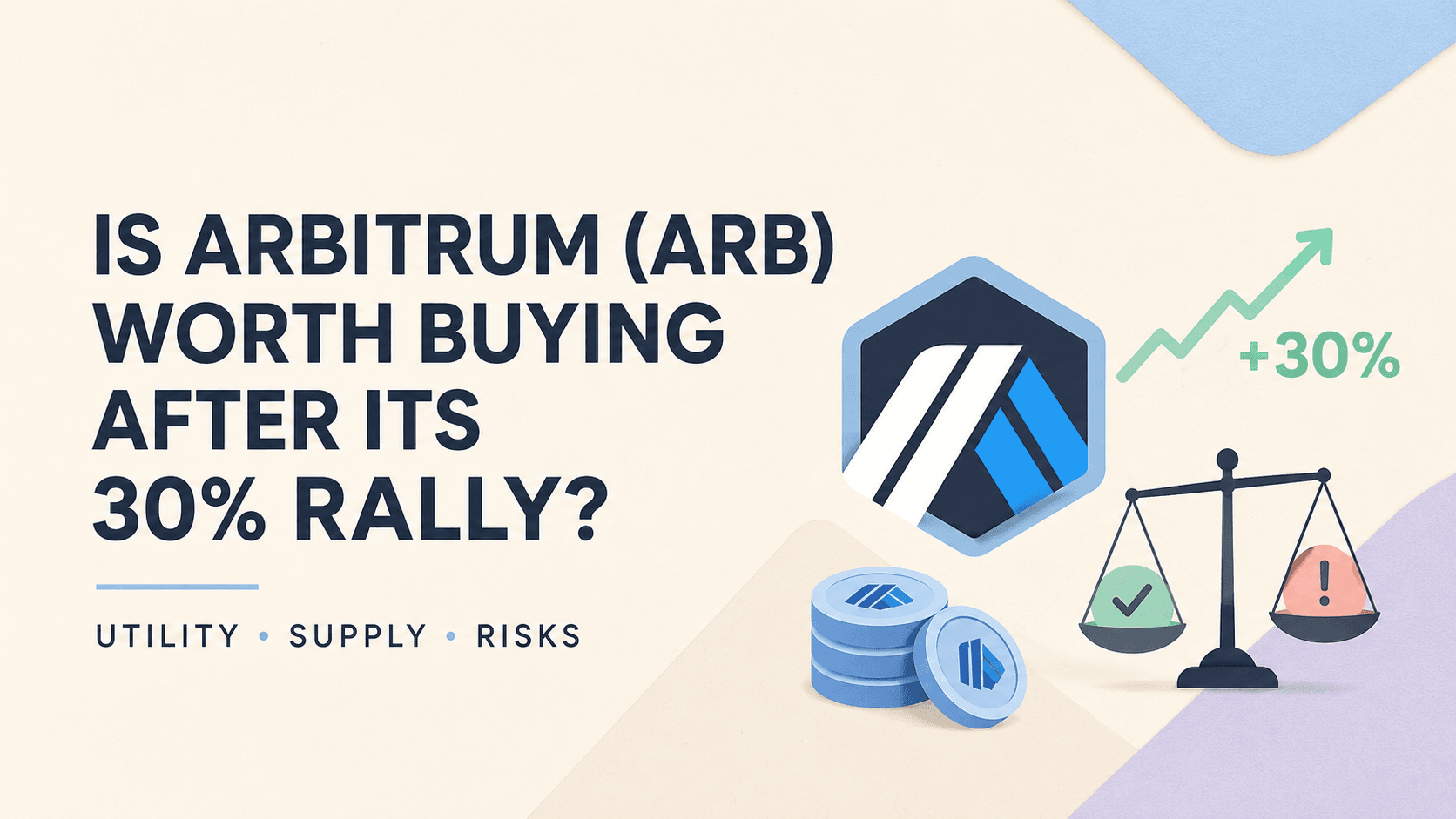
Is Arbitrum (ARB) Worth Buying After Its 30% Rally? An Analysis About Utility, Supply and Risks
Can You Trade U.S. Stocks With 5 USDT? Here's the Real Math
SpaceX Stock Price Holds Near $141: Why Isn't a $100 Billion Spaceport Plan Moving It?
Marvell Stock (MRVL) Beat Earnings and Raised Guidance: Why Did It Fall Anyway?
Where Is XST Actually Trading Now? A Look at Volume Distribution After the Crash
NVDA Stock Jumps 7% After Earnings: Is $250 Next?
Why Is Raini Studios Token (RST) Up Today Despite Low Trading Volume?
Before You Buy CyberLeek: You Should Know CYBERLEEK Token Risks First
Is CyberLeek (CYBERLEEK) Safe? Price Crash and Key Token Risks Explained
CyberLeek Price Prediction 2026: Can CYBERLEEK Recover After the Crash?
Why Is CyberLeek Price Falling Today? CYBERLEEK Crash Explained
SEC Sends Crypto Custody Rule to White House: What the Review Means for Investment Advisers
NVDA Earnings Call Recap: Revenue Guidance, AI Demand and Key Takeaways
Hamster Kombat Is Down 97% From Its Peak: What Happened to Crypto's Biggest Web3 Onboarding Experiment?
Nvidia Earnings Report Today: Did NVDA Beat Revenue and EPS Estimates?
Did Nvidia Beat Earnings? NVDA Q2 Results and Stock Reaction Explained

How to Buy USDT with Easypaisa Using PKR in 2026
Easypaisa Crypto Guide: How to Use the Mobile Wallet for P2P Trading in Pakistan
How to Log In to MetaMask: Unlock, Troubleshooting and Recovery (2026)
WEEX Mini App Launch Rewards: Trial Funds, BTC Airdrops, and an iPhone 17 Pro Giveaway Explained
How to Buy USDT with JazzCash in Pakistan Safely in 2026
JazzCash Crypto Guide: How PKR-to-USDT P2P Payments Work in Pakistan
H/USDT After the Unlock: What Humanity Protocol’s New Supply Means for Traders
Why Is DGrid AI (DGAI) Trending After Its Exchange Debut?
XSolut Coin Extends Its Decline to 7 Straight Days: What Continued Selling Pressure Actually Signals
MORTY After Viral Meme Rally: Overvalued or Growth Story?
SPCX Stock Keeps Swinging Around Its $135 IPO Price : What the Lockup Schedule Still Ahead Actually Means
What Is TermMax (TMX)? Inside the New Fixed-Rate DeFi Token Launching Today
What Is XST Coin? Why There Are Multiple Tokens Using the XSolut Name on Coinbase
What Is IMX Crypto? How Immutable's Layer 2 Became the Largest Web3 Gaming Blockchain
Is Arbitrum (ARB) Worth Buying After Its 30% Rally? An Analysis About Utility, Supply and Risks
Can You Trade U.S. Stocks With 5 USDT? Here's the Real Math
SpaceX Stock Price Holds Near $141: Why Isn't a $100 Billion Spaceport Plan Moving It?
Marvell Stock (MRVL) Beat Earnings and Raised Guidance: Why Did It Fall Anyway?
Where Is XST Actually Trading Now? A Look at Volume Distribution After the Crash
NVDA Stock Jumps 7% After Earnings: Is $250 Next?


